QR codes of approvers and signers in the document
The signed copy (Signed copy with QR codes (PDF) on the document page) shows each decision maker’s QR code — for internal signatures and approvals as well as E-IMZO. You decide where in the text each QR appears; the “Kelishuv va imzolar varag‘i” (approval & signature sheet) with everyone’s QR is always added at the end.
Step by step
- In New document go to the Route step. Under the route, QR codes in the document lists every approval and signing participant (groups and departments show as “whoever decides this stage”).
- Pick a mode: Automatic (QRs replace the signature lines, as before), Only at markers or Approval sheet only.
- For a participant switch QR in document on, choose At marker, the size and whether to print a caption. Press the copy button next to the marker (for example
[[QR1]]), paste it into the text in the editor where the QR belongs — a table cell, header or footer works too. - Press Refresh from editor: each marker shows placed ✓ or not placed !. Preview signed copy opens the signed copy with SAMPLE QR codes so you can check the layout before sending. The same settings are on the document page, QR codes tab, while the document is a draft or returned.
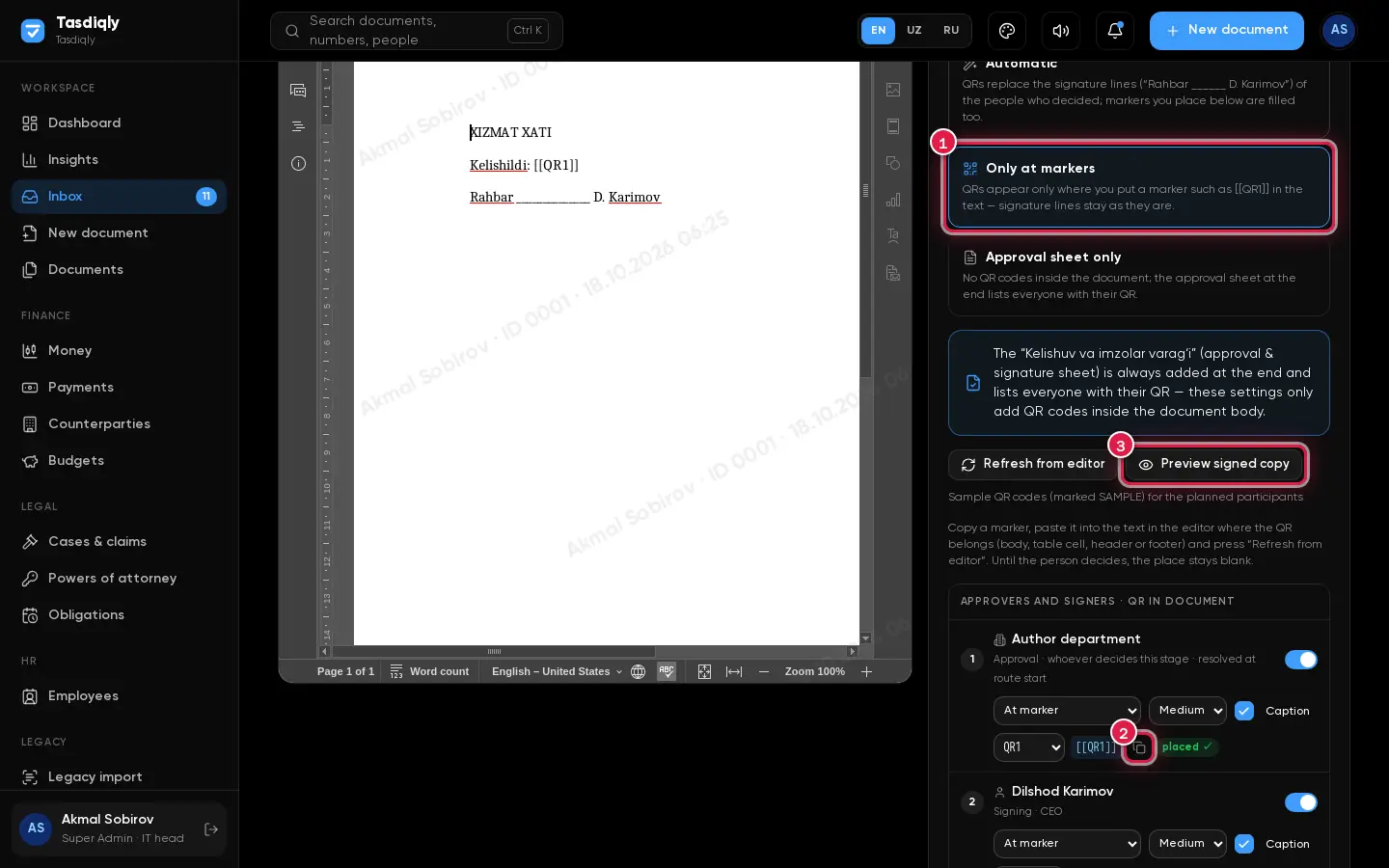
- Mode: only at markers
- Copy the marker
- Preview signed copy
Common mistakes
- Typing the marker with different brackets — use exactly
[[QR1]](spaces and letter case don’t matter). - Expecting the QR before the person decides — until then the place stays blank (same size, so the layout doesn’t move).