Sign in, authenticator and signing PIN
Your password plus a 6-digit code from your phone protect your account; the signing PIN plus the code confirm that it is really you who signs.
Step by step
- Enter Username and Password and press Sign in. If you use an authenticator, the Two-step verification step asks for the 6-digit code — it is submitted automatically.
- Open Profile & security (click your name, bottom left). In Authenticator (TOTP) press Set up authenticator, scan the QR code, enter the code and your password, press Enable.
- In Signing PIN set 4–8 digits and press Save PIN. Whenever Tasdiqly shows Confirm it’s you, enter this PIN and the current code.
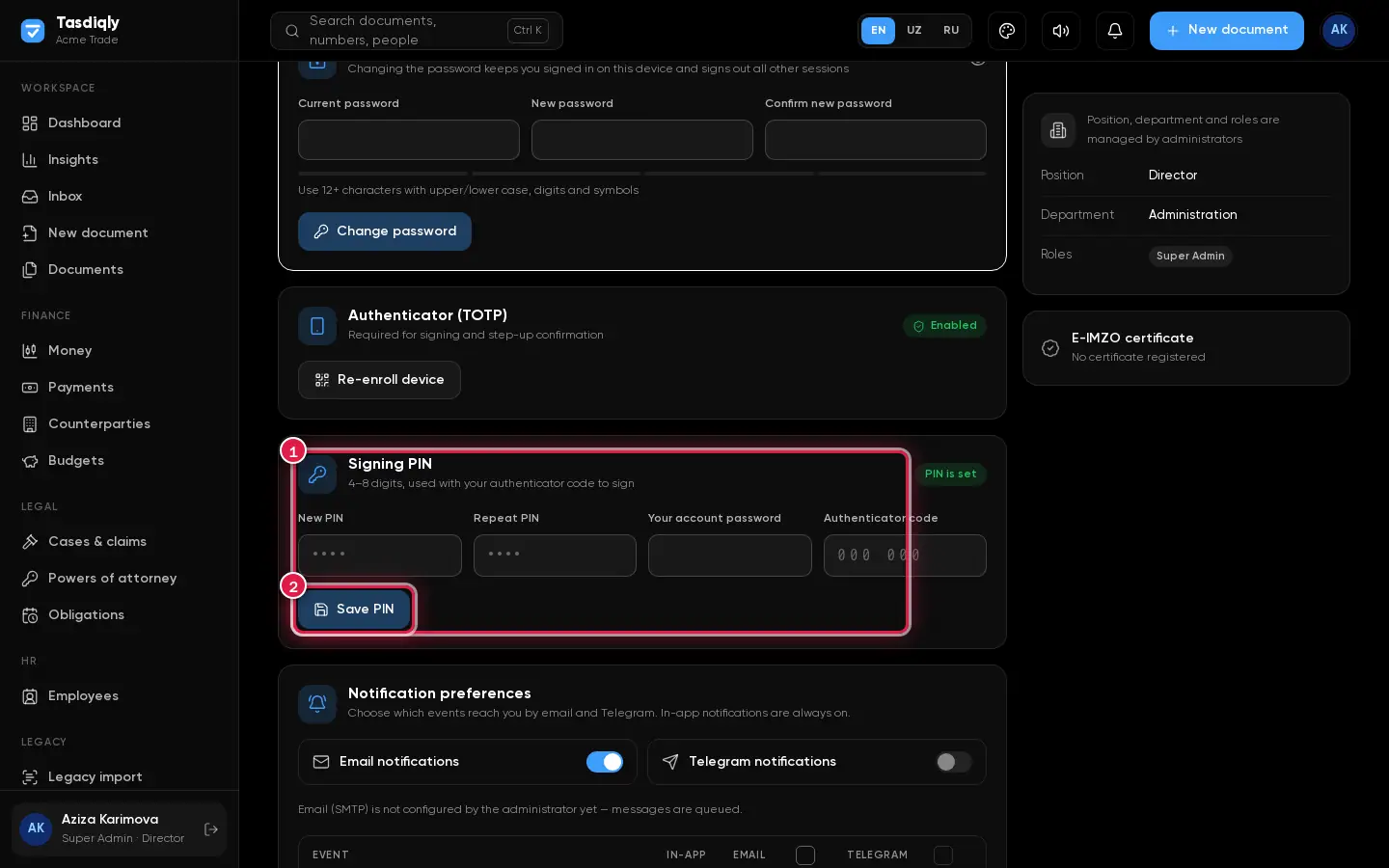
- Signing PIN card
- Save PIN
Common mistakes
- Telling anyone your PIN or a code — Tasdiqly staff will never ask for them.